The built-in Cmd + Shift + 5 shortcut on macOS works perfectly well for occasional use. However, if your daily workflow involves taking dozens of screenshots, blurring sensitive data, extracting text (OCR), and constantly sharing links in Slack or Notion, the default tool quickly becomes a bottleneck. Your desktop turns into a graveyard of heavy PNG files, and annotating images takes up too much of your time.
In 2026, the Mac screenshot software market is largely divided into two camps: expensive premium subscriptions and lightweight indie applications. We tested and reviewed the top 5 best screenshot apps for macOS to help you find the right balance of features, speed, and pricing.
Quick Comparison of the Top Tools
Here is a quick breakdown of how the leading screenshot apps compare:
| Tool | Best Feature | Built-in Cloud Sharing | Price | Best For |
|---|---|---|---|---|
| Sowiks | One-click sharing + auto-compression | ✅ Free (built-in) | $14.99 one-time (free plan available) | Marketers, designers, and QA teams needing quick link sharing without subscriptions. |
| CleanShot X | Premium UI and screen recording | ✅ Cloud sharing requires Pro | From $29/year (or via Setapp) | Content creators and professionals willing to pay a recurring fee. |
| Shottr | Lightning-fast and tiny app size | ❌ Requires your own S3 setup | Pay what you want | Developers and engineers who prioritize speed and pixel measurements. |
| Lightshot | Ultimate simplicity | ✅ Free | Free | Casual users with minimal needs. |
| Snagit | Heavy corporate suite | ✅ TechSmith Cloud | $39.99/year | Enterprise teams creating complex technical documentation. |
In-Depth Review of the Top 5 Mac Screenshot Tools
1. Sowiks — The Best Balance of Features and Price
Best for: Product managers, designers, support specialists, and teams who need to share visual feedback quickly without managing image files.
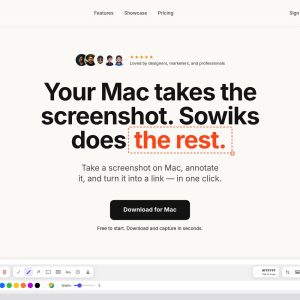
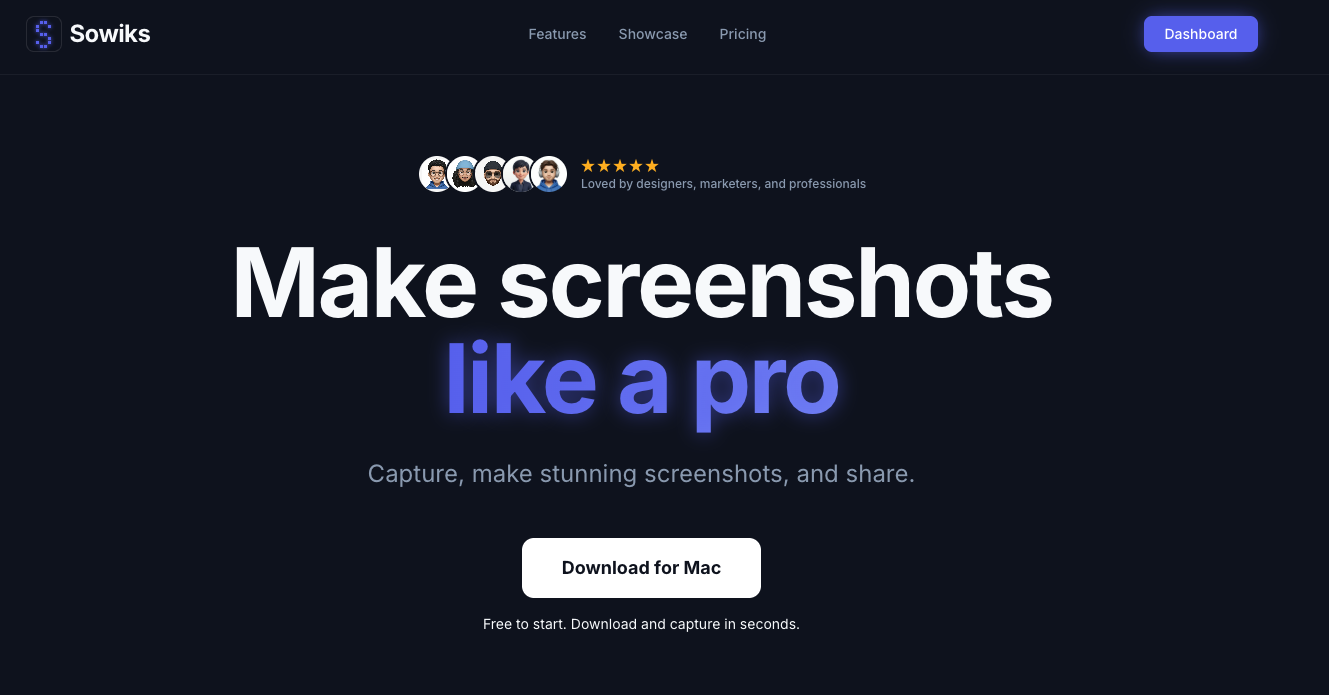
Sowiks is a strong contender that addresses a specific gap in the market: providing seamless cloud sharing and advanced features without a monthly subscription. It positions itself as a tool that shares like CleanShot but features a one-time pricing model similar to smaller indie apps.
Key Features:
- Smart Collections: You can bundle up to 10 screenshots into a single shareable link, keeping your Slack channels clean.
- Screen video recording.
- Built-in OCR (Free): Easily extract text from any image or interface without paying extra.
- Auto-Compression: The app automatically compresses image sizes, saving your disk space and ensuring fast loading times for the recipient.
- Scrolling Screenshots: Capture entire web pages easily.
The Downside: Sowiks lacks the advanced screen shot capabilities found in heavier tools like Lightshot.
Pricing: Free forever plan (includes basic sharing and OCR). The Solo license is a $14.99 one-time payment.
2. CleanShot X — The Premium Standard for Power Users
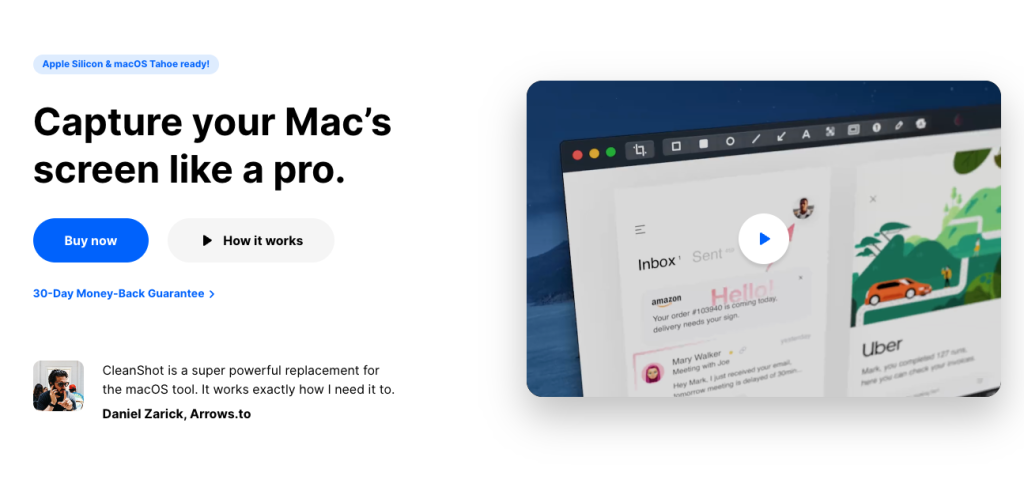
Best for: Video tutorial creators, bloggers, and professionals who frequently record their screens and don’t mind subscription models.
CleanShot X is widely considered the gold standard for macOS screenshot utilities. It offers an incredibly polished native interface and boasts over 50 different features. It shines particularly bright when it comes to screen recording, offering seamless GIF and MP4 creation.
Key Features:
- Beautifully designed interface with floating thumbnail previews.
- Advanced video recording with trimming capabilities.
- Extensive annotation tools and aesthetic background options.
The Downside: CleanShot X is relatively expensive. You can buy a one-time license, but it only includes one year of updates. Furthermore, their built-in cloud hosting requires a separate Pro subscription.
Pricing: Starts at $29/year (also available through Setapp).
3. Shottr — The Developer’s Favorite
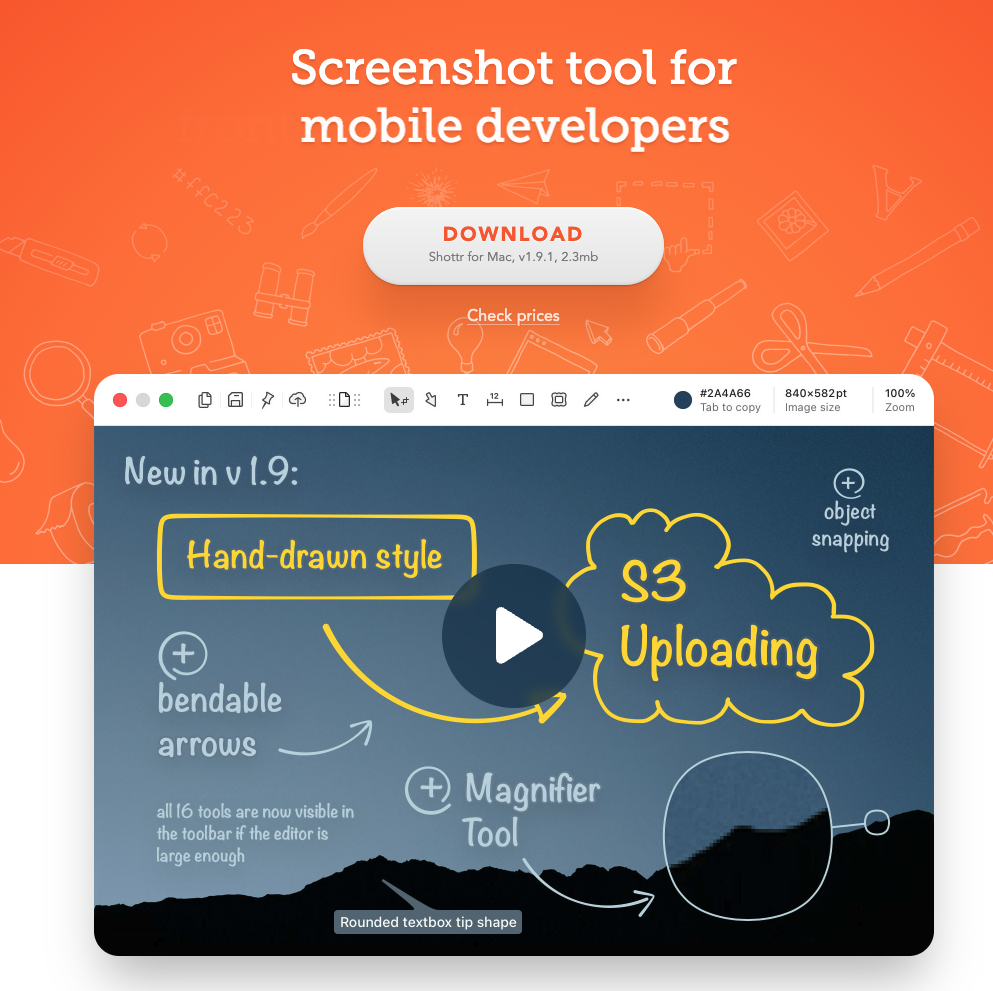
Best for: Front-end engineers, developers, and tech-savvy users who need a fast, lightweight tool.
Shottr won the hearts of the tech community through its sheer performance. Weighing in at just 2.3MB and launching in 17ms, it is incredibly fast. It was built with pixel-perfection in mind, offering unique features like on-screen rulers and color pickers.
Key Features:
- Instant performance, even on older Mac models.
- Great tools for UI/UX developers (rulers, spacing measurements).
- High-quality text recognition (OCR).
The Downside: Shottr does not have its own cloud hosting. To share a screenshot via a link, you have to manually configure an Amazon S3 bucket or similar service, making it a poor choice for non-technical users who just want to click and share.
Pricing: “Pay what you want” model (free for personal use, paid licenses available).
4. Lightshot — The Legacy Free Option
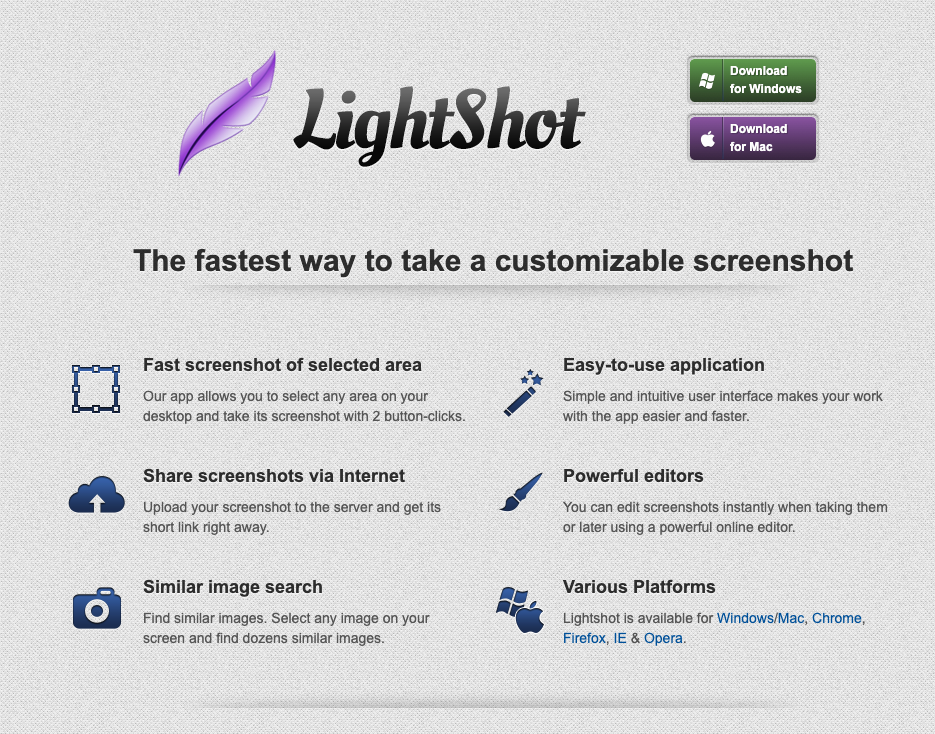
Best for: Users who rarely take screenshots and only need the most basic functionality.
Lightshot is a veteran in the screenshot market. While its interface hasn’t been updated in years, it remains popular due to its simplicity and historical domain authority. It allows you to select an area, make basic drawings, and upload it to prnt.sc.
Key Features:
- 100% free to use.
- Incredibly simple learning curve.
The Downside: The app is outdated. It lacks modern features like OCR or scrolling capture. Additionally, uploading to the public prnt.sc server poses a privacy risk for sensitive work documents.
Pricing: Free.
5. Snagit — The Enterprise Heavyweight
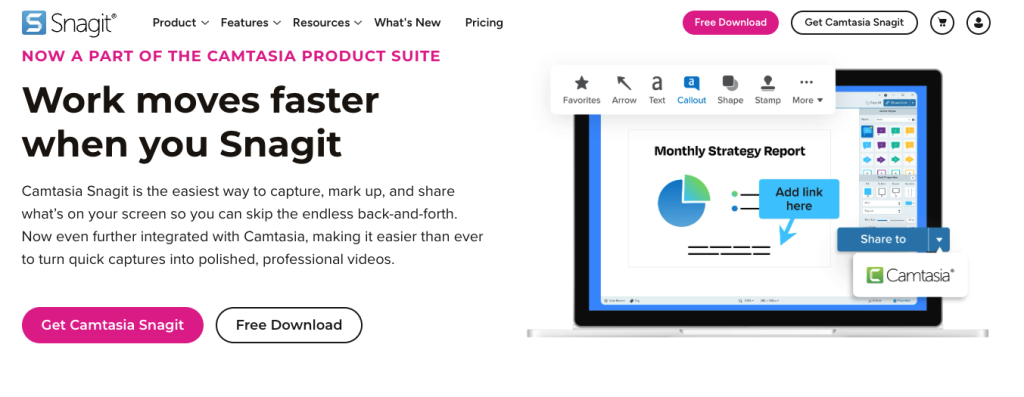
Best for: Corporate environments, technical writers, and HR departments creating extensive manuals.
Snagit (by TechSmith) is a massive, comprehensive software suite for image and video capture. It’s less of a quick screenshot tool and more of a documentation powerhouse, allowing you to manipulate UI elements, replace text within images, and create step-by-step guides.
Key Features:
- Professional toolkit for technical documentation.
- Step tools for automatic numbering on screenshots.
- Templates for creating visual instructions.
The Downside: Snagit is very heavy and can be slow to launch. The interface is cluttered with features that average users will never touch, and it comes with a steep corporate price tag.
Pricing: Starts at $39.99/year.
Why standard Mac screenshots (Cmd + Shift + 5) aren’t enough
If you are using a Mac for work, the built-in capture tool has several limitations:
- No Link Sharing: You have to drag and drop files into your messengers one by one, rather than sending a single organized link.
- No Text Extraction: The built-in tool doesn’t pull error codes or text from the images you capture.
- Messy Desktop: Standard captures save full-sized, uncompressed files directly to your hard drive, quickly eating up your storage space.
Conclusion: Which Mac screenshot app should you choose?
Selecting the perfect screenshot tool for your Mac ultimately comes down to identifying your daily workflow bottlenecks and deciding how you prefer to pay for your software. If your routine is centered around capturing high-quality video walkthroughs and you do not mind paying a recurring fee for a premium interface, CleanShot X remains a polished, albeit expensive, industry favorite. On the other hand, if you are a developer or power user who values raw speed, precise pixel measurements, and the independence of configuring your own cloud storage, Shottr offers an incredibly lightweight and fast local experience.
However, for the vast majority of modern professionals including marketers, designers, and project managers who simply need a fast way to annotate, compress, and share multiple screenshots via a single link without the hassle of a monthly subscription, Sowiks strikes the most practical balance. It effectively bridges the gap between premium cloud sharing and budget-friendly indie software.
Ultimately, the best tool is the one that seamlessly clears the clutter from your desktop and lets you communicate visually with as few clicks as possible.